

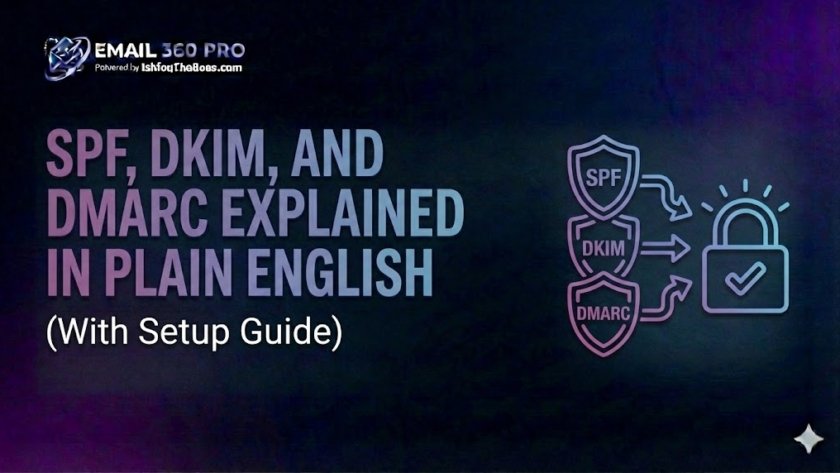
Email authentication (SPF, DKIM, DMARC) is the DNS-based security protocol that proves your identity to receiving servers. Without these three records, your emails are treated as anonymous, unverified traffic and are automatically routed to spam folders. For cold emailers, these are not optional “security features”—they are the mandatory license plates required to drive on the internet highway.
The “ID Card” Analogy
To understand these acronyms, imagine you are trying to enter a high-security building (the Inbox).
- SPF: The list of names on the clipboard at the security desk. (“Is this person allowed in?”)
- DKIM: Your tamper-proof wax seal on the envelope. (“Has this message been opened or changed?”)
- DMARC: The instruction manual for the guard. (“If they aren’t on the list or the seal is broken, kick them out.”)
This guide walks you through setting up all three, step-by-step, so you can stop guessing why you are landing in spam.
1. SPF (Sender Policy Framework)
The Concept: SPF is a simple text record in your DNS that lists the IP addresses authorized to send mail for your domain.
The Syntax: v=spf1 include:_spf.google.com include:amazonses.com ~all
The Breakdown:
v=spf1: “This is an SPF record.”include:_spf.google.com: “Allow Google Workspace to send for me.”include:amazonses.com: “Allow Amazon SES to send for me.”~all: “Soft Fail. If the sender isn’t on this list, mark it suspicious but maybe let it through.” (Use-allfor Hard Fail if you want maximum security).
Common Mistake: The “Double Record” Error You can only have ONE SPF record per domain.
- Wrong:
- Record 1:
v=spf1 include:_spf.google.com ~all - Record 2:
v=spf1 include:sendgrid.net ~all
- Record 1:
- Right (Merged):
- Record 1:
v=spf1 include:_spf.google.com include:sendgrid.net ~all
- Record 1:
2. DKIM (DomainKeys Identified Mail)
The Concept: DKIM is a digital signature hidden in the email header. It uses a “Private Key” (on your server) to sign the email, and a “Public Key” (in your DNS) for the receiver to verify it.
The Setup Process:
- Go to your sending provider (e.g., Google Admin or Amazon SES).
- Click “Generate DKIM Record.”
- They will give you a Selector (e.g.,
google) and a long TXT Value (e.g.,v=DKIM1; k=rsa; p=MIIBIjANBg...). - Go to your DNS host (GoDaddy/Namecheap).
- Create a TXT record.
- Host/Name:
google._domainkey(or whatever selector they gave you). - Value: Paste the long code.
- Host/Name:
Why it matters: If a hacker intercepts your email and changes the bank account number in the body, the DKIM signature will “break,” and the email will be rejected. This protects your reputation.
3. DMARC (Domain-based Message Authentication, Reporting, and Conformance)
The Concept: DMARC ties SPF and DKIM together. It tells the world what to do if your authentication fails.
The Syntax: v=DMARC1; p=none; rua=mailto:admin@yourdomain.com
The Policies (p=):
p=none(Monitoring Mode): “If authentication fails, do nothing. Just send me a report.”- Use this for weeks 1-2.
p=quarantine(Enforcement Mode): “If authentication fails, put it in Spam.”- Use this for weeks 3-4.
p=reject(Maximum Security): “If authentication fails, bounce it. Do not deliver.”- Use this once you are 100% sure your setup is perfect.
The Reporting (rua=): This part sends you a daily XML report showing who is sending email as you. This is how you spot unauthorized use (or broken tools).
4. Step-by-Step Setup Guide (GoDaddy/Namecheap + Google)
Step 1: Login to DNS
Log into your domain registrar and find “DNS Management” or “Zone Editor.”
Step 2: Add SPF
- Type: TXT
- Host:
@ - Value:
v=spf1 include:_spf.google.com ~all(Add other providers if needed). - TTL: 1 Hour (or 3600 seconds).
Step 3: Add DKIM (for Google Workspace)
- Go to
admin.google.com> Apps > Gmail > Authenticate Email. - Click “Generate New Record.”
- Copy the “TXT record name” (usually
google._domainkey). - Type: TXT
- Host:
google._domainkey - Value: (Paste the long key).
Step 4: Add DMARC
- Type: TXT
- Host:
_dmarc - Value:
v=DMARC1; p=none; rua=mailto:your-email@domain.com
Step 5: Verify
Use a tool like MXToolbox or Email 360 Pro’s DNS Checker. If you see green checkmarks for all three, you are live.
5. Advanced: “Custom Return Path” (CNAME)
If you use an external sender like Amazon SES or Mailgun, there is a “hidden” fourth step: The Custom Return Path.
Without this, your emails technically say “Mailed-By: amazonses.com” in the header (a mismatch). To fix this, you create a CNAME record (e.g., mail.yourdomain.com) that points to the provider. This aligns the “Return Path” domain with your “From” domain, achieving 100% DMARC Alignment.
Frequently Asked Questions (FAQ)
Q1: How long does it take for DNS changes to work? A: Usually 1 hour, but it can take up to 48 hours (“DNS Propagation”). Don’t panic if your checker says “Missing” 5 minutes after you saved it.
Q2: Can I just copy-paste the SPF record from a blog? A: No! You must include the specific services you use. If you paste include:_spf.google.com but you send via Outlook, your emails will bounce.
Q3: What happens if I make a typo in my DKIM record? A: Your emails will likely fail authentication and go to spam. DKIM keys are case-sensitive and very long. Always use the “Copy to Clipboard” button; never type it manually.
Q4: Do I need DMARC if I only send 50 emails a day? A: Yes. Since February 2024, Google and Yahoo require DMARC for bulk senders. Even for low volume, having DMARC improves your reputation score significantly.
Q5: What is the difference between ~all and -all in SPF? A:
~all(Soft Fail): “Accept but mark suspicious.” (Safer for beginners).-all(Hard Fail): “Reject immediately.” (Better for security, but risky if you forget to add a provider).
Q6: Why am I getting DMARC reports from IPs I don’t recognize? A: This could be unauthorized use (spoofing) OR it could be a tool you forgot about (like your CRM, Helpdesk, or Billing software). Check the report before switching to p=reject.
Q7: Can I have multiple DKIM records? A: Yes! Unlike SPF, you can have as many DKIM records as you want. Each provider (Google, Zoom, HubSpot) will give you a unique “Selector” (e.g., google._domainkey, hubspot._domainkey), so they don’t conflict.
Q8: Does sub-domain need its own SPF/DKIM? A: Usually, yes. If you send from john@sales.company.com, you should set up authentication on the sales.company.com subdomain, or ensure the root domain’s policy covers it.
Q9: My DNS provider doesn’t accept the “@” symbol for Host. What do I do? A: Leave the Host field blank. In some DNS panels (like AWS Route53), a blank field equals the root domain (@).
Q10: What is “BIMI” and do I need it? A: BIMI (Brand Indicators for Message Identification) puts your logo next to your email in the inbox. It requires strict DMARC (p=reject or p=quarantine) and often a paid trademark certificate (VMC). It’s a “nice to have,” not a “must have.”
Q11: Why is my SPF record “Too Many Lookups”? A: The SPF standard limits you to 10 DNS lookups. If you have too many include: statements (e.g., Google + Outlook + Zoho + Salesforce + Hubspot), you will break the limit. You need to use an “SPF Flattening” tool to compress them.
Q12: Is p=none useless? A: No. It allows you to collect data without risking delivery failures. It is the mandatory first step of deployment. Staying on p=none forever is bad practice, but starting there is smart.
Q13: Does Email 360 Pro set this up for me? A: We generate the records for you, but you must paste them into your domain host (GoDaddy/Cloudflare) because we don’t have your login passwords for those sites.
Q14: If I use a dedicated IP, do I still need SPF? A: Yes. The receiving server doesn’t know you own that IP until the SPF record explicitly connects that IP to your domain.
Q15: How often should I update these records? A: Only when you add or remove a sending tool. If you cancel your Mailgun account, remove include:mailgun.org from your SPF record to close the security hole.
The 15-Minute Security Audit
Don’t send another email until you verify these three records.
[Link: Run a Free DNS Check on Email 360 Pro]