

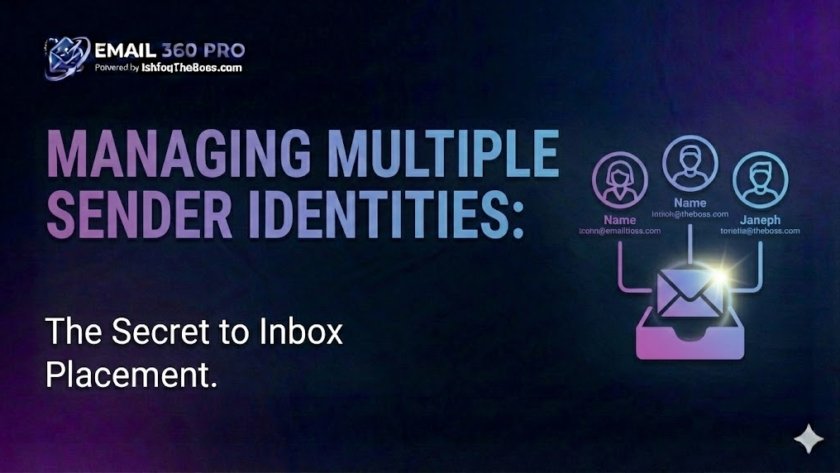
Sender Identity Management is the strategic practice of distributing email volume across dozens of distinct “From” addresses and domains to dilute reputation risk. By treating each inbox as an independent node in a network rather than a single channel, high-volume senders can push 100,000+ emails monthly while maintaining the high deliverability of a small, human-operated account.
The “Single Point of Failure” Risk
In traditional business, you have one identity: name@company.com. In high-volume sales, this is a liability.
If you send 10,000 emails from your main identity and hit a spam trap, your entire business communication infrastructure goes down. You can’t invoice clients, you can’t email your team, and your CEO’s emails go to spam.
The Solution: Decentralized Identities. Instead of one “cannon,” you build a “swarm” of 50 archers. This guide explains exactly how to construct, manage, and rotate these identities without going insane.
1. The Architecture of a “Sender Identity”
A Sender Identity is more than just an email address. To Google and Outlook, it is a composite profile made up of:
- The Domain: (
try-company.com) - The User: (
john@) - The IP: (The server sending the mail)
- The Metadata: (Profile picture, signature, forwarding rules)
To look “human” at scale, you must optimize all four layers for every single identity.
2. Aliases vs. Mailboxes: The Deadly Mistake
Most founders try to save money by using Aliases.
- What is an Alias?
john+sales@domain.comorsales@domain.comthat routes tojohn@domain.com.
Do NOT use aliases for cold email scaling. Why? Because aliases share the exact same reputation fingerprint as the main inbox. If sales@ gets flagged for spam, john@ is burned instantly.
The Rule: You need distinct Mailboxes (User Accounts).
- Identity A:
john@domain-A.com(Reputation Score: 99) - Identity B:
sarah@domain-B.com(Reputation Score: 98) If Identity A burns, Identity B is completely unaffected.
3. Step-by-Step Identity Setup
To manage 50+ identities, you need a factory-line process.
Step 1: Domain Variation
Don’t just add numbers (company1.com). Use prefixes that sound like legitimate infrastructure:
get[brand].comtry[brand].com[brand]hq.com[brand]labs.com[brand]team.com
Step 2: The “Forwarding” Matrix
You cannot log into 50 inboxes. You must set up Server-Side Forwarding.
- Wrong: Forwarding via Gmail filters (client-side).
- Right: Forwarding via Admin Console (server-side).
- Destination: All 50 inboxes forward to
master-inbox@your-main-company.com. - Reply-To Header: Configure your sending tool to set the “Reply-To” address as the specific identity, so the conversation thread stays intact.
Step 3: Profile Pictures (The Trust Signal)
An email with a profile picture has a 15% higher open rate.
- Google Workspace: Upload a photo for every user in the Admin console.
- Gravatar: Register the emails on Gravatar to populate the photo across the web.
- BIMI (Brand Indicators for Message Identification): For advanced setups, implement BIMI records to display your logo in the inbox (requires trademark verification).
4. Humanizing the “Swarm”
If you have 50 inboxes, should they all be “John Doe”?
- Option A: The Founder Clone (Recommended for Personal Brands) All 50 inboxes are “John Doe” but from different domains.
- Pros: Builds personal brand.
- Cons: If you get famous for spamming, your name becomes toxic.
- Option B: The Team Avatars (Recommended for Scale) Create identities for your real team members (Co-founders, Head of Sales).
- Pros: Diversifies name reputation.
- Option C: The Pseudonym Strategy Using “Pen Names” (e.g., “Alex form Team X”).
- Legal Note: This is generally legal if you are acting on behalf of a real company, but check your local regulations. Transparency is better.
5. Rotation Logic: The “Traffic Cop”
You need a “Smart Rotator” (like Email 360 Pro) to manage traffic.
Static Rotation (Bad):
- Inbox 1 sends 50. Then Inbox 2 sends 50.
- Risk: Creates predictable spikes.
Dynamic Load Balancing (Good):
- The system checks the health of all 50 inboxes.
- It randomly selects an inbox for each lead.
- It sends 1 email from Inbox A, 1 from Inbox C, 1 from Inbox B.
- If Inbox D receives a “421 Service Not Available” error, the system pauses it for 4 hours automatically.
Frequently Asked Questions (FAQ)
Q1: How much does it cost to maintain 50 sender identities? A: If using Google Workspace ($6/mo), it’s $300/mo. If using an Unlimited/BYO-SMTP tool with cheaper providers (like Zoho or private SMTP), it can be as low as $50-$100/mo. The ROI of 100k emails usually justifies the $300.
Q2: Can I use the same profile picture for all 50 accounts? A: Yes. In fact, you should, if they all represent the same person. Google does not “image match” profile pictures to detect spam (yet).
Q3: Should I redirect my secondary domains to my main website? A: YES. Mandatory. If a prospect gets an email from get-brand.com and types it into their browser, it MUST redirect to brand.com. If it goes to a dead page, they will mark you as spam.
Q4: How do I manage signatures for 50 accounts? A: Use “Spintax” in your signature settings. {Best,|Cheers,|Thanks,} John | Founder @ {Brand|Brand Inc.}. This prevents the signature footer from becoming a fingerprint for spam filters.
Q5: Is it better to buy domains all at once or gradually? A: Buy them all at once (to age them), but activate them gradually. A domain needs to exist for at least 14-21 days before it sends its first email to be trusted.
Q6: What happens if I forget to renew a secondary domain? A: Disaster. Someone else could buy it and receive your replies. Set all domains to “Auto-Renew” and use a dedicated credit card that won’t expire.
Q7: Can I use “info@” or “sales@” as identities? A: Avoid generic prefixes. john@ or j.doe@ performs significantly better. Generic inboxes often trigger the “Promotions” tab filter automatically.
Q8: How do I handle 2-Factor Authentication (2FA) for 50 accounts? A: Use a password manager (1Password/LastPass) to store the 2FA backup codes or TOTP keys. Do not link them all to a single phone number (Google will block the number after ~5 accounts).
Q9: Can I use different names for the same person? A: “John D.”, “J. Doe”, “Johnathan Doe”. Slight variations help, but don’t lie. Don’t call yourself “Sarah” if you are “John.”
Q10: Does Gmail link my accounts if I log into them from the same Chrome browser? A: Yes. Google tracks “Browser Fingerprints.” For high-risk setups, use a multi-login browser (like GoLogin or Incogniton) or simply rely on your sending software (Email 360 Pro) so you never have to log in manually.
Q11: What is the “Reply-To” header hack? A: You can send from john@secondary-domain.com but set the Reply-To header to john@main-domain.com.
- Pros: Replies go straight to your main inbox without forwarding.
- Cons: If the prospect looks closely, it can look slightly suspicious (“Why is he emailing from X but replying to Y?”). Forwarding is generally safer for trust.
Q12: How many identities can I put on one domain? A: Maximum 3-5. If you put 20 identities on one domain and one gets blocked, the entire domain gets blocked, killing all 20 identities. Spread your risk.
Q13: Can I delete an identity if it gets burned? A: Yes, but delete the mailbox, not the domain. Keep the domain registered (redirecting to your site) so you don’t lose future traffic. Just stop sending from it.
Q14: How do I check the “Sender Score” of each identity? A: You can’t easily check individual inbox scores, but you can check the Domain score via Google Postmaster Tools. Add all your secondary domains to one Postmaster Tools account to monitor them in a single dashboard.
Q15: What is “Inbox Placement” vs. “Deliverability”? A:
- Deliverability: The email didn’t bounce. (It could be in Spam).
- Inbox Placement: The email landed in the Primary Tab.
- Managing multiple identities is entirely about maximizing Placement, not just Deliverability.
Organize Your Swarm
Stop managing 50 logins on spreadsheets. Centralize your sender identities.
[Link: Setup Inbox Rotation with Email 360 Pro]